Welcome to Novakrift Classic.
This guide explains how to install the theme in your Shopify store, preview your storefront, and prepare for customization.
Whether you are a Shopify merchant setting up your store or a developer preparing to work with the theme, this guide will help you get started.
Before you begin: We recommend installing and reviewing Novakrift Classic as an unpublished theme before replacing your current live theme.
1. Before You Begin
Before installing Novakrift Classic, make sure you have:
- Access to your Shopify admin.
- The Novakrift Classic theme ZIP file.
- A desktop browser for the initial setup.
- Product images, product information, and brand assets ready, where applicable.
Important: Your store’s products, collections, pages, and navigation are managed separately from the theme files. Installing a theme does not necessarily populate your store with demo content or automatically configure every section.
2. Install Novakrift Classic
Follow these steps to upload the theme ZIP file to your Shopify store.
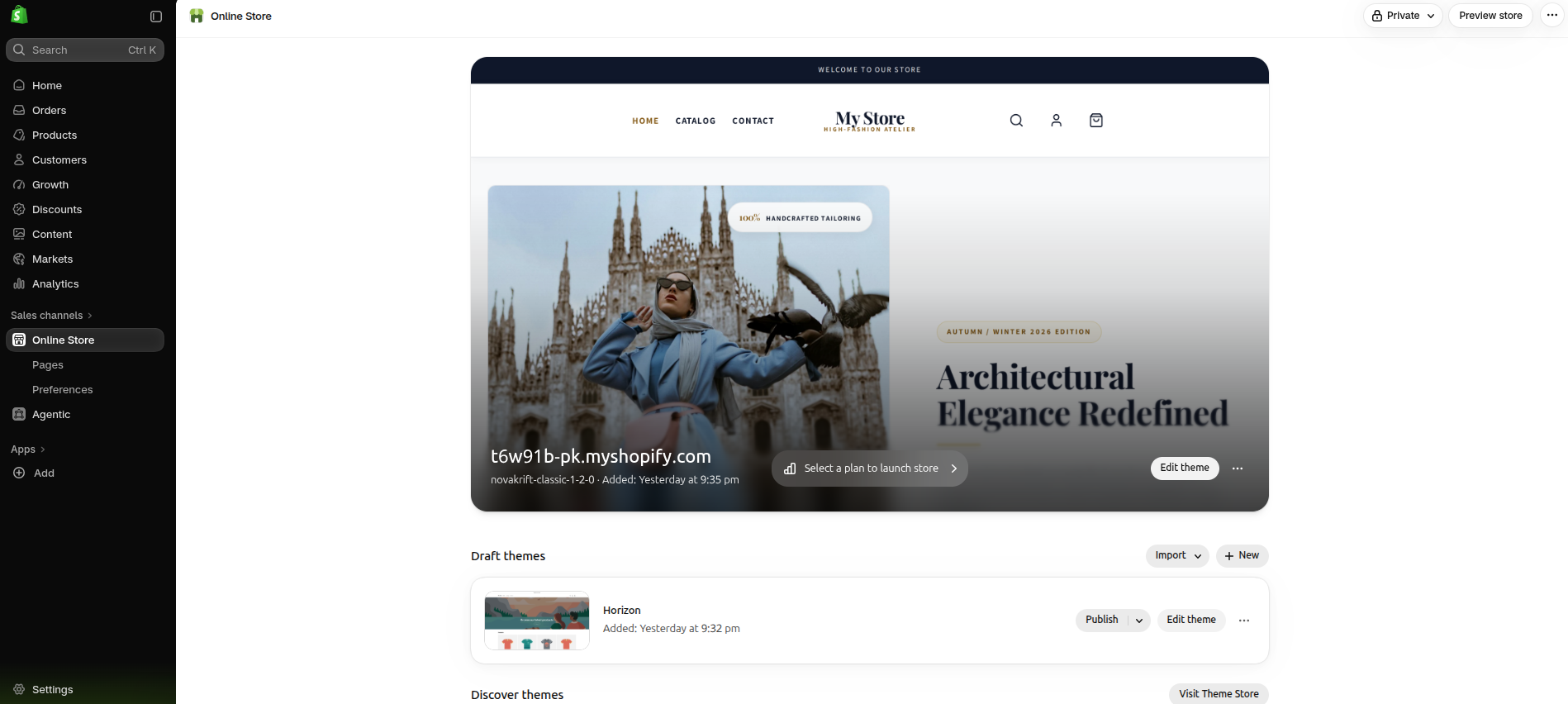
Step 1 — Open the Themes page
- Sign in to your Shopify admin.
- Navigate to Online Store → Themes.
- Locate the section where you can manage your store’s themes.

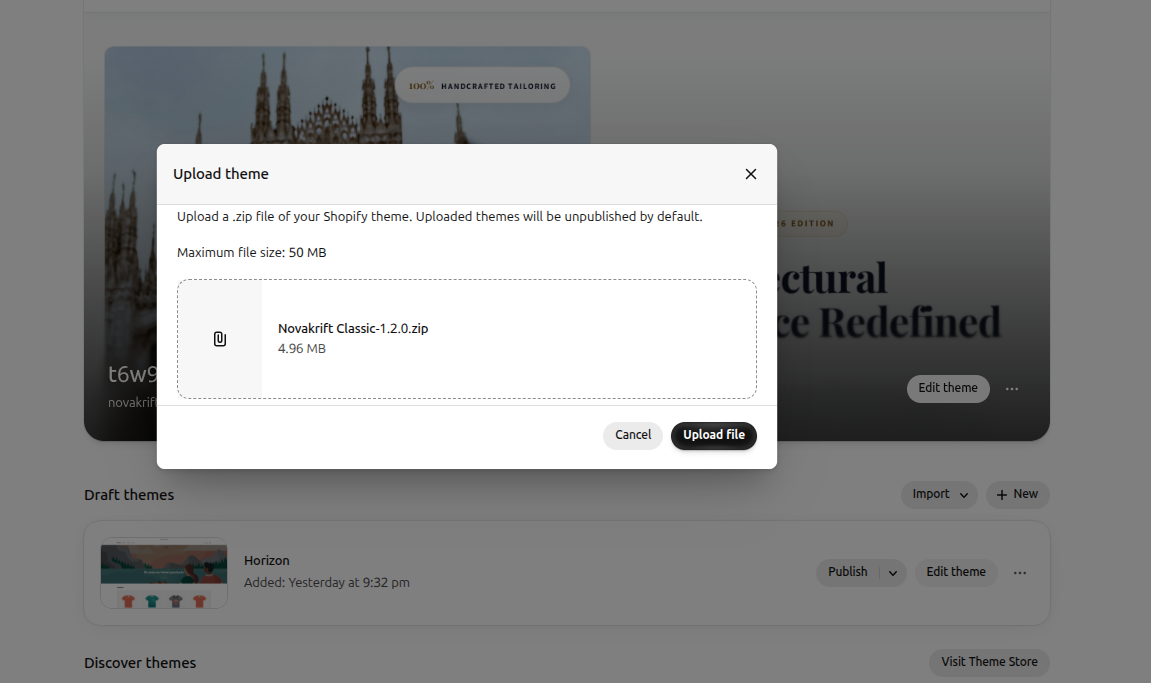
Step 2 — Upload the theme ZIP file
- Locate the theme upload option.
- Select the option to upload a ZIP file.
- Choose the Novakrift Classic ZIP file from your computer.
- Start the upload and wait for Shopify to finish processing the theme.
The exact labels and placement of these controls may vary with Shopify’s admin interface.
Step 3 — Confirm the installation
After uploading the theme:
- Return to the Themes page.
- Locate Novakrift Classic in your theme list.
- Open the theme preview.
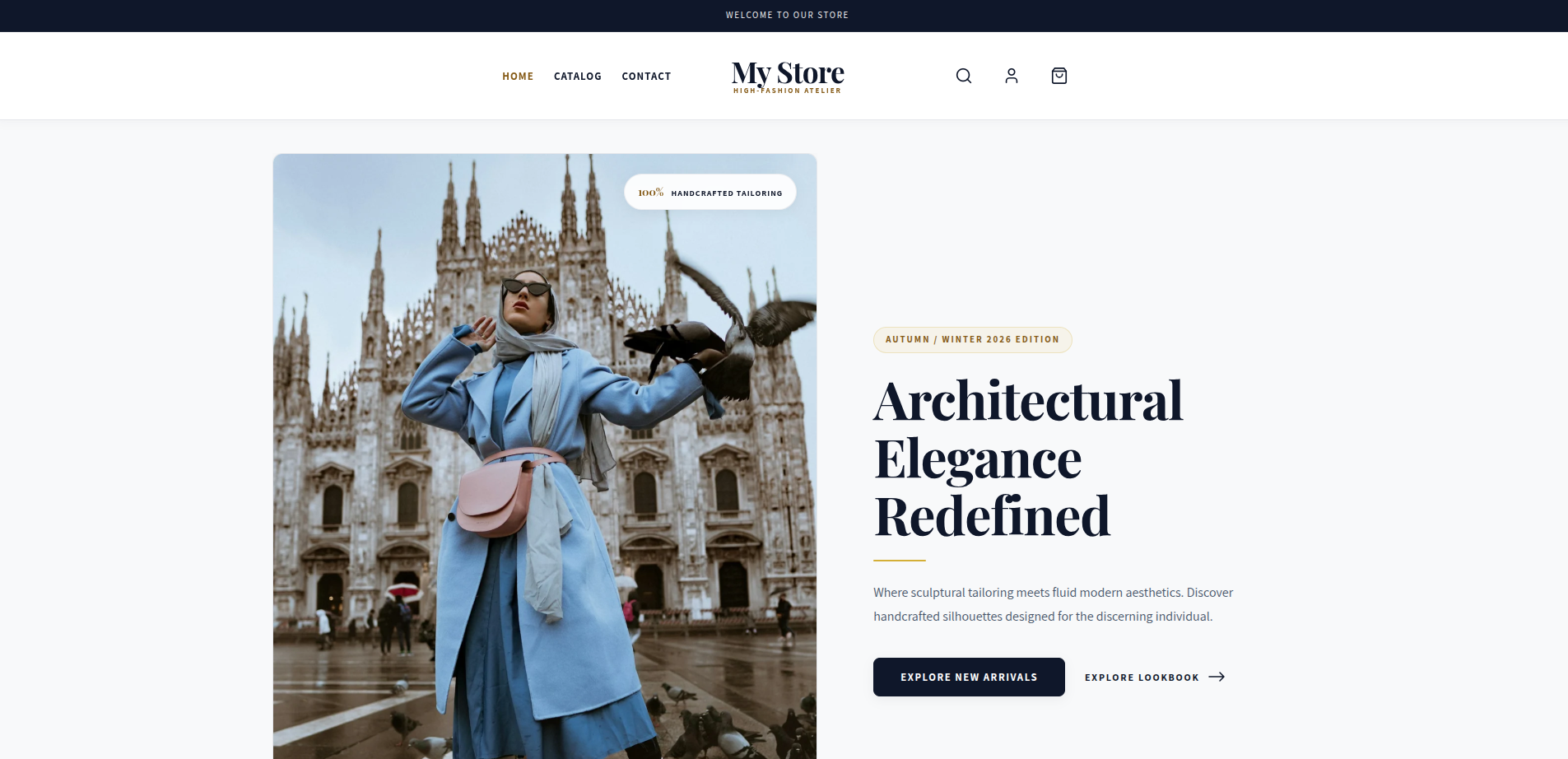
- Check that the storefront loads as expected.
Keep your existing published theme unchanged while you review the new installation.
3. Preview Your Storefront
Before publishing the theme, open its preview and inspect the storefront.
Recommended checks:
These are general Shopify theme review checks, not a claim that every Novakrift Classic feature has been independently tested.
4. Prepare for Customization
After installation, open the theme editor to explore the settings and sections available in Novakrift Classic.
Recommended next steps:
- Review the available theme settings.
- Inspect the homepage sections.
- Review product and collection templates.
- Check the navigation and storefront content.
- Save your changes and preview the result.
The available controls depend on the actual theme implementation. Refer to the relevant feature documentation for verified instructions.

5. Developer Notes
Developers should inspect the supplied theme package before making code-level changes.
Verify the following against the actual ZIP file:
- Theme templates, sections, snippets, and assets.
- Theme settings and section schema definitions.
- Any required app integrations or external dependencies.
- The actual implementation of documented features.
Do not assume that a particular file path or configuration option exists until it has been verified.
6. Troubleshooting
The theme ZIP file will not upload
- Confirm that you selected the intended ZIP file.
- Record the full Shopify error message.
- Check that the package is a valid Shopify theme archive.
- If the issue persists, inspect the package structure and validate it against Shopify’s theme requirements.
The storefront does not look as expected
- Open the preview for Novakrift Classic.
- Check whether your products, collections, menus, and other store content are configured.
- Review the available theme settings.
- Compare the result with verified reference screenshots.
The theme is installed but not visible to customers
An installed theme is not necessarily the published theme. Check its status in Shopify admin before taking any action.
Publish only after reviewing the storefront and confirming that you intend to replace your current live theme.
7. Frequently Asked Questions
Does installing Novakrift Classic immediately change my live storefront?
Uploading a theme adds it to your store’s Themes page. Review the theme before publishing it.
Will my existing products and collections be deleted?
Shopify manages products and collections separately from theme files. However, theme-specific settings, templates, and code customizations may differ between themes.
Can a developer customize the theme code?
Developers can work with Shopify theme files. Make a backup before modifying code and verify the relevant implementation in the Novakrift Classic package.
Where should I go next?
Continue with Design System & Theme Settings to learn about the design controls available in Novakrift Classic.