Novakrift Classic v1.2.0
(Shopify Online Store 2.0)
Audience: Shopify Merchants & Frontend Developers
Status: 100% Tested & Verified
Last Verified: October 31, 2026
Shoppable Editorial Lookbooks
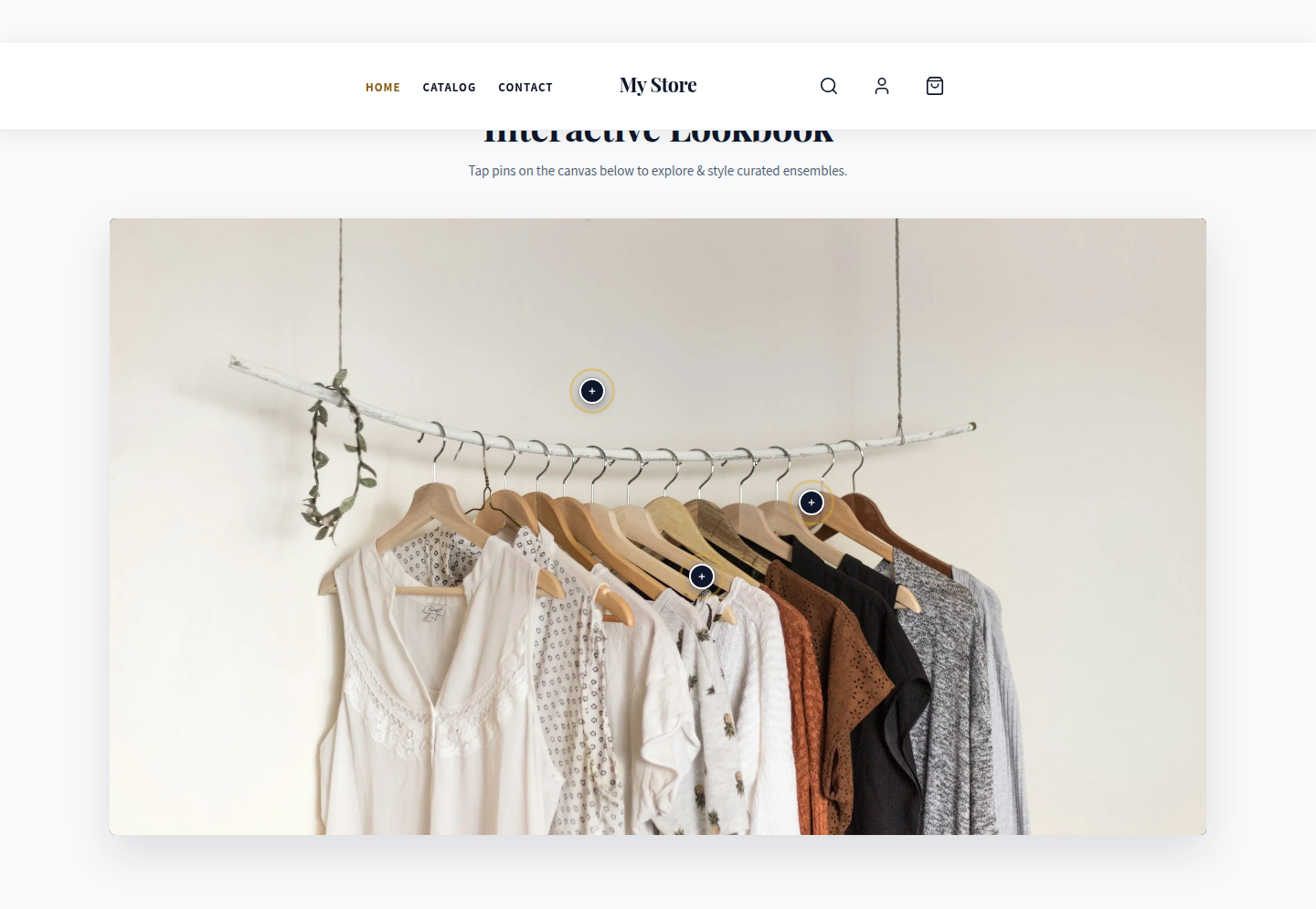
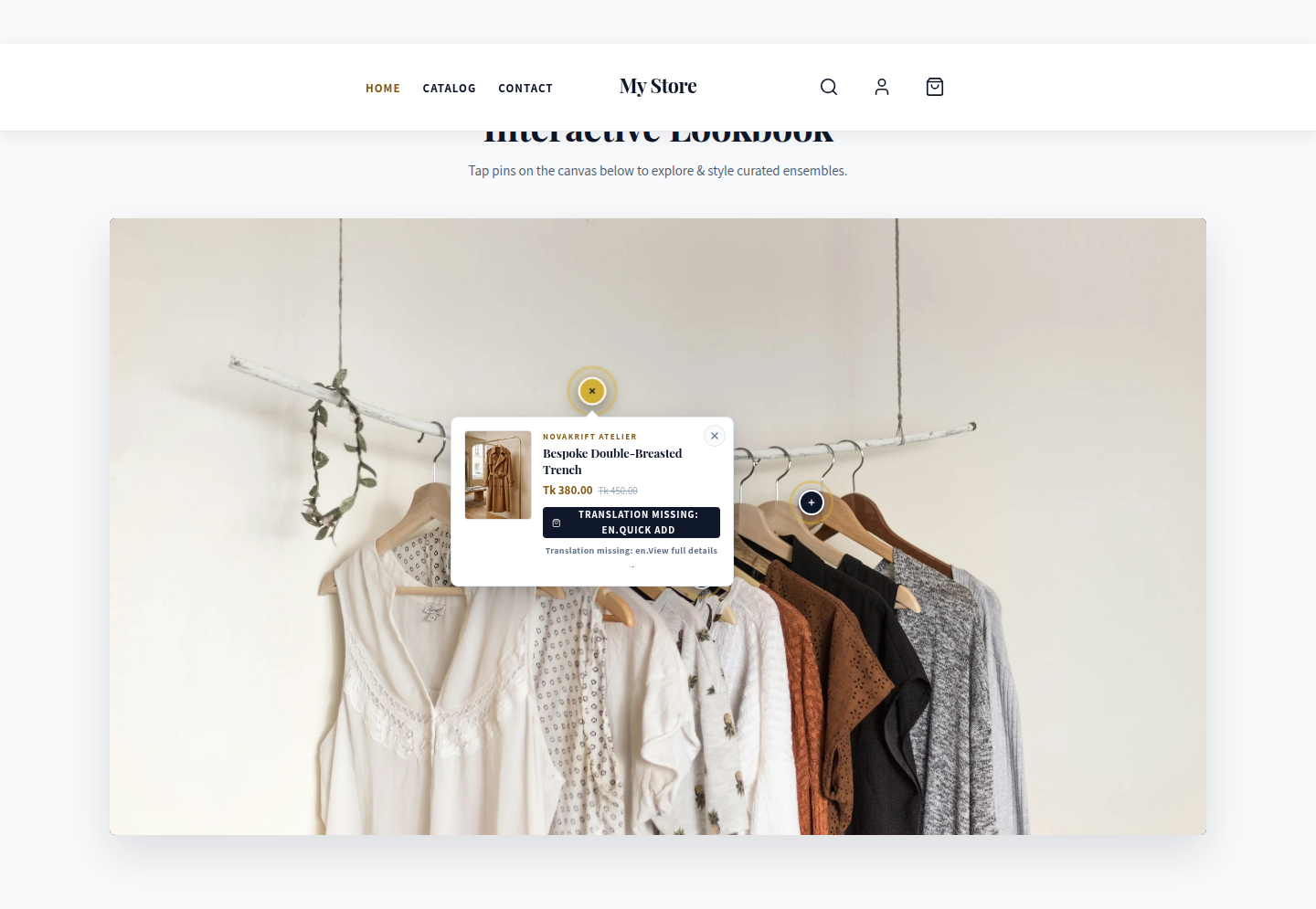
The Interactive Lookbook (sections/shop-the-look.liquid) allows fashion houses to transform editorial campaign photography into shoppable discovery experiences. Customers can tap pulsing coordinate pins directly on garments or accessories to preview prices, select sizes, and add items to their bag without leaving the lookbook canvas.
Advanced UX Mechanics
- Smart Viewport Edge Detection: Hotspot product cards automatically calculate screen boundaries and open upwards, downwards, left, or right to prevent clipping offscreen.
- In-Card Variant Selector: Customers can choose sizes or colors directly inside the hotspot card before adding to cart.
- Instant AJAX Quick Add: One-click cart addition that slides open the Cart Drawer with real-time shipping threshold updates.
- Touch-Optimized Mobile Bottom Sheet: On mobile devices, tapping a hotspot smoothly reveals an elegant bottom sheet drawer with touch dismissal gestures.
Step-by-Step Configuration Guide
1. Adding the Lookbook Section
- Open Shopify Theme Customizer on your Homepage or Custom Editorial Page.
- Click Add section → Interactive Lookbook (Shop the Look).
- Upload your Lookbook Canvas Image:
- Recommended Dimensions:
1800 x 1000 px(Aspect Ratio: 16:9 or 9:5 landscape). - Choose imagery with clear view of multiple styled pieces (e.g. jacket, pants, leather bag, footwear).
2. Adding Hotspot Pins
- Under the Interactive Lookbook section, click Add Hotspot.
- Select Product: Choose the exact Shopify product corresponding to the garment in the photo.
- Set Pin Coordinates:
- Horizontal Position (%): Enter the X-axis coordinate from
0%(far left) to100%(far right). - Vertical Position (%): Enter the Y-axis coordinate from
0%(top) to100%(bottom). - Example: To pin a jacket, set Horizontal to
48%and Vertical to35%.
- Add additional hotspot blocks for other garments in the ensemble (up to 6 pins per lookbook image).
- Adjust Pin Style & Color: Toggle between Champagne Gold (
#A6793E) or Obsidian White pulsing indicators. - Click Save and verify pin accuracy on both desktop and mobile previews.